Scoreboards premium
A scoreboard is one message in a channel that updates itself every minute. It shows the live matches, the upcoming matches and the latest results of the teams and leagues that channel follows.
Who can use it
- Pro and Max servers can add scoreboards.
- On Max servers the scoreboard uses your custom bot name, avatar and colour from Customize bot.
- One scoreboard per channel, up to 10 per server. Text and announcement channels only.
What it looks like
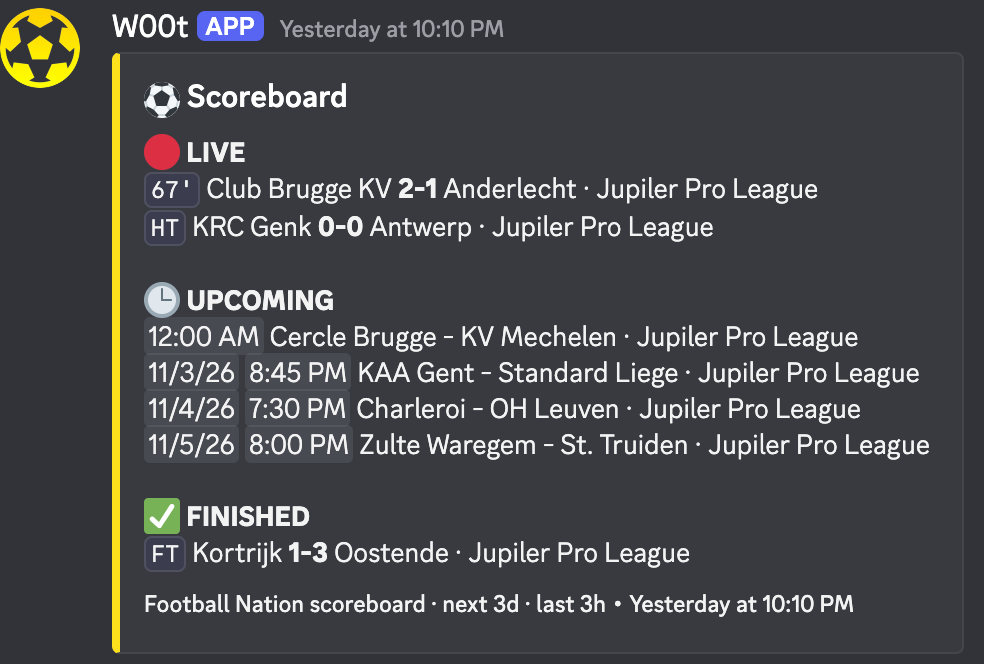
Example with test data on a Max server, so the scoreboard uses the custom name and colour of that server.
The message has up to three sections. Empty sections are left out.
| Section | Shows |
|---|---|
| 🔴 LIVE | Matches being played, with the minute (67') or a status: HT half time,
BT break before extra time, PEN penalty shootout, INT
interrupted, SUSP suspended. Always shown. |
| 🕒 UPCOMING | Kick-offs inside the window you pick. The time is shown in each reader's own timezone, with the
date for matches more than 12 hours away. TBD means the kick-off time is not
known yet, PST postponed, CANC cancelled. |
| ✅ FINISHED | Results for as long as you pick after the final whistle: FT, AET
after extra time, PEN after a shootout (with the shootout score). |
The footer repeats your settings, for example Football Nation scoreboard · next 3d · last 3h. When there are too many matches to fit in one message, the last lines of a section become +N more.
Set up a scoreboard
-
1
Follow teams or leagues in the channel Run
/livein the channel, or add them on the dashboard under Live subscriptions. The scoreboard shows exactly what that channel follows./live name:jupiler-pro-league -
2
Open Scoreboards on the dashboard Log in to the Football Nation dashboard, pick your server and click Scoreboards in the menu.
-
3
Choose the channel and the time windows Pick the channel, how far ahead upcoming matches are shown and how long results stay on the board.
-
4
Click Create scoreboard The bot posts the scoreboard right away. From then on it edits that same message.
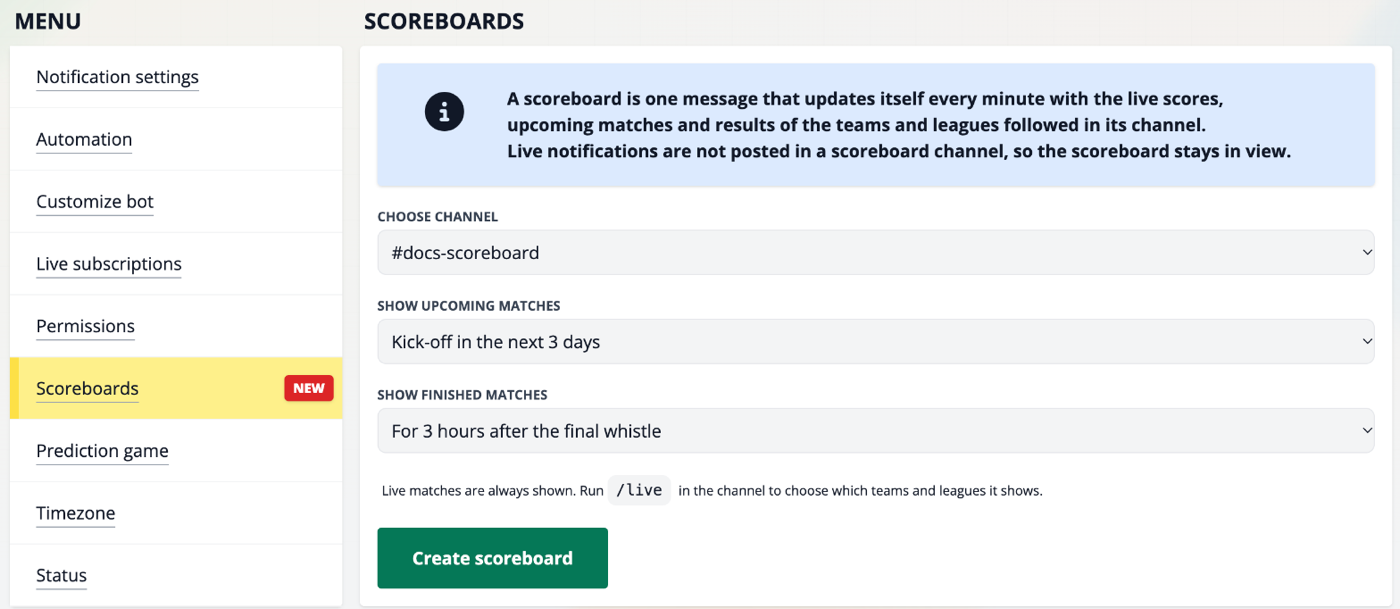
The bot needs the Manage Webhooks permission in the channel, because the scoreboard is posted through the channel's webhook. Without it the dashboard says The bot can't post in this channel.
Your scoreboards are listed under Your scoreboards, with what they show and their settings:
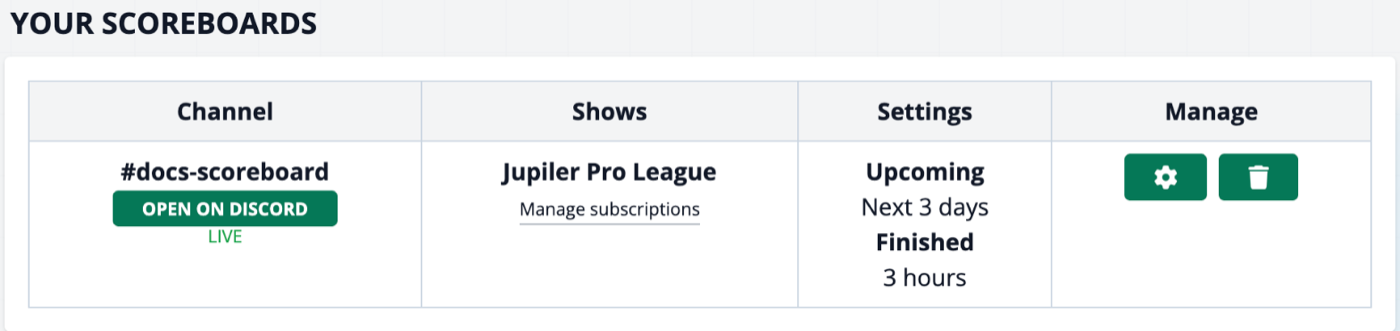
Settings
| Setting | Choices | Default |
|---|---|---|
| Show upcoming matches | Don't show, or kick-off in the next 3, 6, 12 or 24 hours, 2, 3 or 7 days | Next 24 hours |
| Show finished matches | Don't show, or for 1, 2, 3, 6, 12 or 24 hours after the final whistle | 3 hours |
Live matches are always shown. To change the settings later, click the button next to the scoreboard, pick new values and click Save. The message in Discord is updated right away.
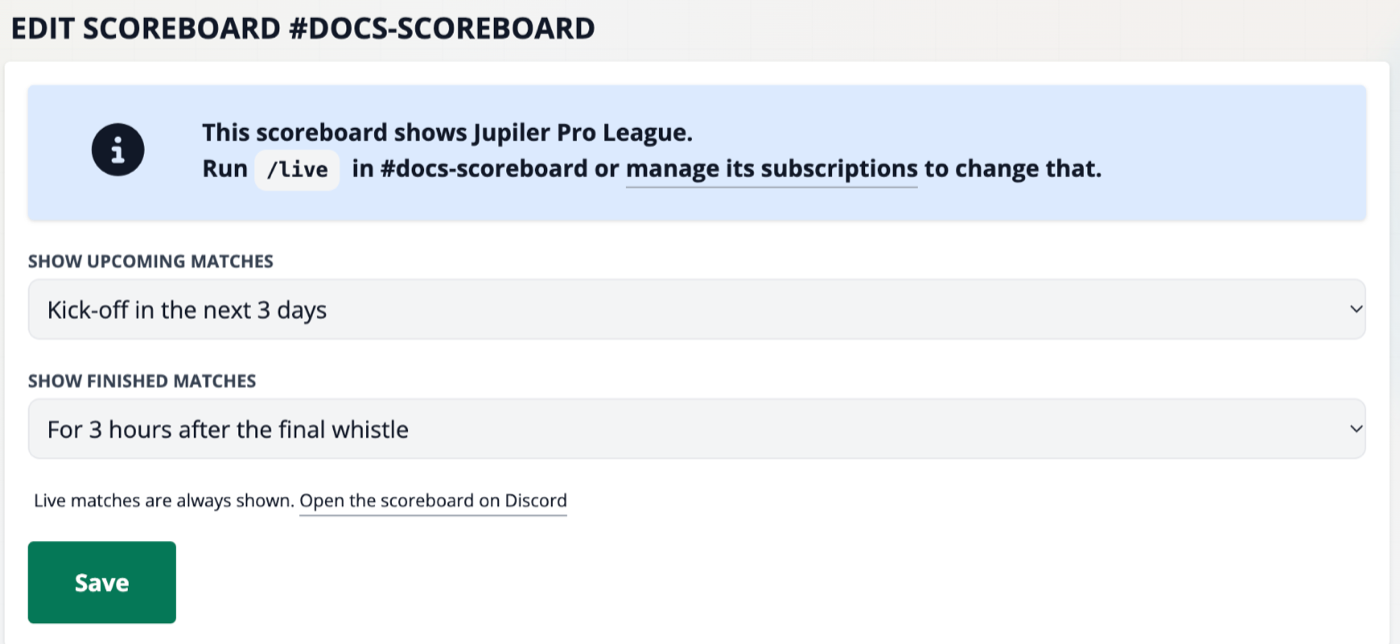
Scoreboards, /live and notifications
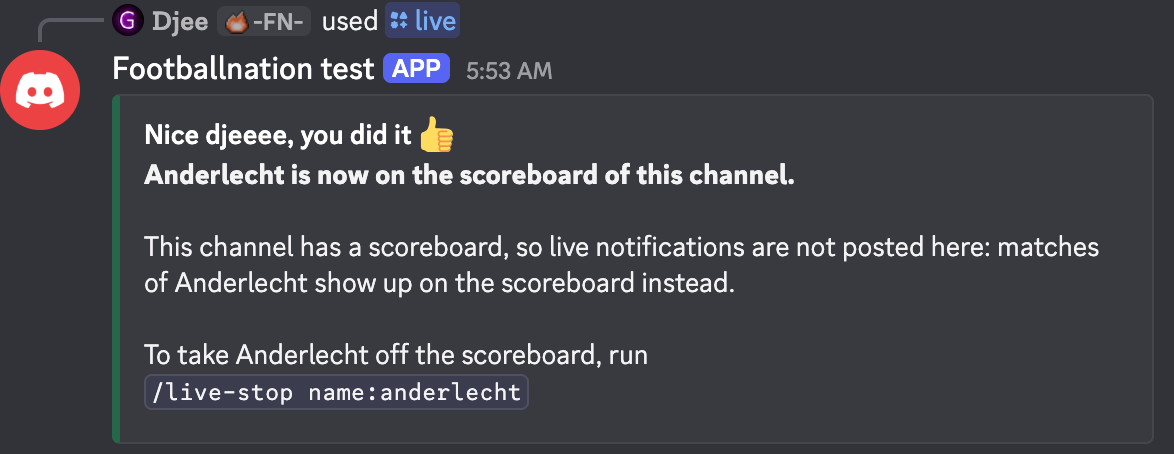
- No live notifications in a scoreboard channel. Goals, cards, kick-off and the other events are not posted there, so the scoreboard stays in view. Other channels keep their notifications.
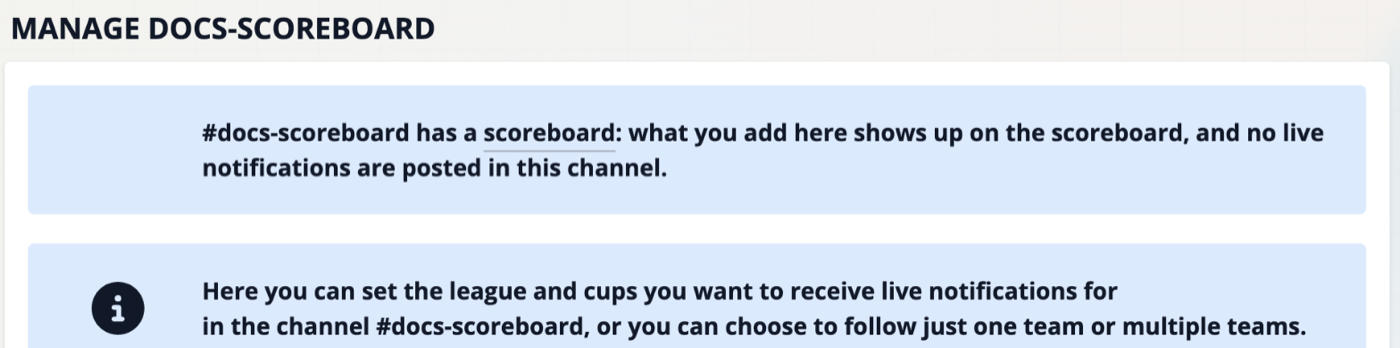
/liveadds to the scoreboard. Running/livein the channel puts that team or league on the scoreboard. The bot replies that it is now on the scoreboard instead of promising notifications./live-stoptakes it off again./live-list,/live-upcomingand/live-nowkeep working as usual.- The dashboard shows it too. On the Live subscriptions page of a scoreboard channel a note says that what you add there shows up on the scoreboard.
- Notifications come back as soon as you remove the scoreboard.
Want both a scoreboard and goal notifications? Use two channels that follow the same teams: one with the scoreboard, one without.
The scoreboard message was deleted
If someone deletes the scoreboard message in Discord, the bot notices it the next time it tries to update the message: within a minute while one of its matches is live, and otherwise within 30 minutes. Until then the channel stays quiet. The scoreboard then shows Message deleted on the dashboard and live notifications are posted in the channel again.
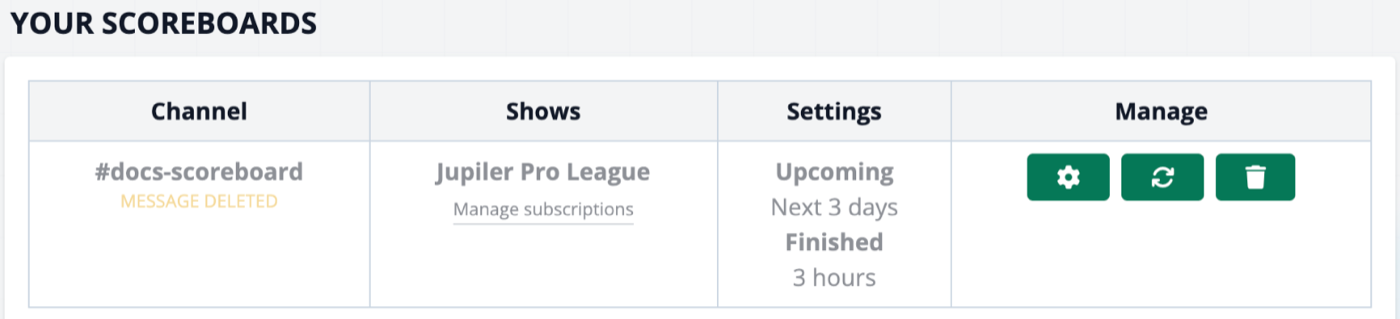
To get it back, click the Post again button next to it. You can also open the settings and click Save. The bot posts a new message at the bottom of the channel and keeps updating that one.
Other statuses
| Status | Meaning and fix |
|---|---|
| Live | Everything works. |
| Message deleted | The message was deleted in Discord. Click Post again. |
| Can't post | The bot has no webhook in the channel any more, or lost the Manage Webhooks permission. Give the permission back and click Post again. |
| Not posted | Discord refused the message. Check the bot's permissions in the channel and try again. |
| Paused | Premium ended. The message changes to Scoreboard paused. It picks up again by itself within a minute after you renew premium. |
Remove a scoreboard
Click the button next to the scoreboard and confirm. The bot deletes the message in Discord and live notifications are posted in that channel again.
Related
- Choose what a channel follows with
/live - Notification settings for the channels without a scoreboard
- Slash command reference
- Compare Pro and Max